Set Up Indoor Wi-Fi Roaming with OpenWRT: A Step-by-Step Guide
Key Takeaways
- Understand what Wi-Fi roaming is and its significance in health settings.
- Follow a step-by-step guide to configure OpenWRT for seamless indoor roaming.
- Ensure optimal connectivity in health facilities for improved patient care.
What is Indoor Wi-Fi Roaming?
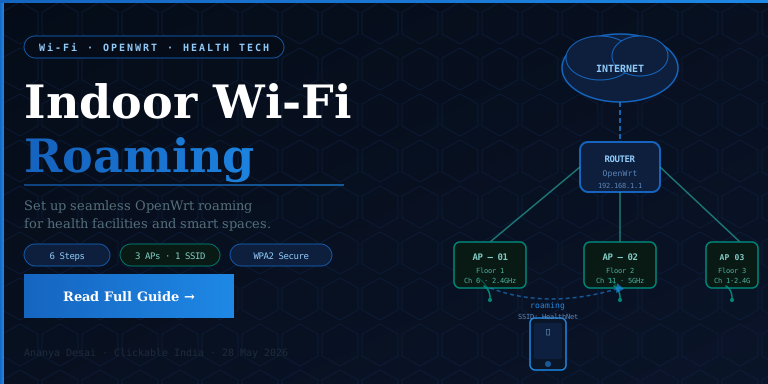
Indoor Wi-Fi roaming refers to the ability of devices to switch between Wi-Fi access points (APs) without losing connection, ensuring continuous internet access. This is crucial in health environments where uninterrupted connectivity supports critical applications and patient monitoring systems.
Why is Wi-Fi Roaming Important in Health Settings?
Wi-Fi roaming is vital in healthcare settings for several reasons:
- Enhanced Connectivity: Ensures that medical devices and staff can stay connected without interruptions.
- Improved Patient Care: Allows healthcare professionals to access vital information in real-time, enhancing decision-making.
- Reduced Frustration: Minimizes downtime, leading to a better experience for both staff and patients.
What You'll Learn
In this guide, you will learn how to set up indoor Wi-Fi roaming using OpenWRT, a popular open-source firmware for routers. This tutorial will provide you with step-by-step instructions to optimize your network for seamless connectivity.
Prerequisites
- A router compatible with OpenWRT.
- Basic knowledge of networking and router configuration.
- Access to your router’s admin interface.
Step-by-Step Guide to Set Up Indoor Wi-Fi Roaming with OpenWRT
Step 1: Install OpenWRT on Your Router
To get started, ensure that OpenWRT is installed on your router. Follow these steps:
- Download the correct firmware for your router model from the OpenWRT downloads page.
- Access your router's web interface (usually at 192.168.1.1).
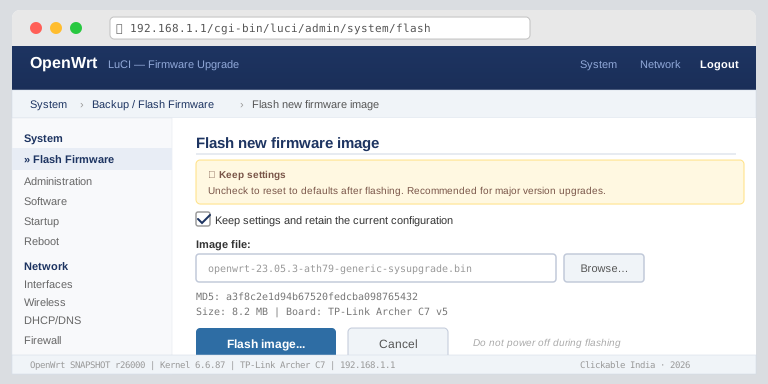
- Navigate to the firmware upgrade section and upload the OpenWRT firmware.
Step 2: Configure Wireless Settings
Once OpenWRT is installed, configure the wireless settings:
- Log into the OpenWRT interface.
- Navigate to Network > Wireless.
- Click Add to create a new wireless network.
Step 3: Enable Wireless Roaming
To enable roaming:
- Ensure all access points are on the same SSID (network name).
- Set the same security settings (WPA2 is recommended).
- Adjust the channel width and frequency to minimize interference.
Step 4: Configure DHCP and IP Settings
Next, configure DHCP settings for device management:
- Navigate to Network > Interfaces.
- Edit the LAN interface to enable DHCP for all devices.
Step 5: Test Your Configuration
After configuration, test your setup:
- Use a mobile device to walk through the coverage area.
- Monitor the connection stability and speed.
Step 6: Troubleshooting Common Issues
If you experience issues:
- Check that all APs have the same SSID and security settings.
- Ensure firmware is up-to-date on all devices.
- Use tools like Wi-Fi Analyzer to check for interference.
Next Steps
Once you have set up your indoor Wi-Fi roaming, monitor the network's performance regularly. Consider additional optimizations such as mesh networking for larger spaces or implementing VLANs for better traffic management.
People Also Ask
What is OpenWRT?
OpenWRT is an open-source firmware for routers that allows advanced configuration and customization for improved network performance.
Can I use OpenWRT for health applications?
Yes, OpenWRT is suitable for health applications as it provides enhanced network control and reliability.
What devices are compatible with OpenWRT?
Many consumer routers from brands like TP-Link, Linksys, and Netgear support OpenWRT. Check the OpenWRT website for compatibility lists.
How do I reset my router to factory settings?
Most routers have a reset button; press and hold it for 10-15 seconds to restore factory settings.
What is the difference between roaming and handoff?
Roaming refers to switching connections between access points, while handoff involves transferring an active session from one AP to another without interruption.
Frequently Asked Questions
What is OpenWRT?
Can I use OpenWRT for health applications?
What devices are compatible with OpenWRT?
How do I reset my router to factory settings?
Stay Updated
Get the latest posts delivered to your inbox.
Related Posts
 Health
5 Effective Wellness Tips for Managing Stress and Anxiety
Discover 5 actionable wellness tips to effectively manage stress and anxiety, enhancing your financial decision-making...
 Health
Guide to Analyzing Your Digital Footprint: 20 Years of Chats
Learn how to analyze your digital footprint from 20 years of chats with this step-by-step guide, improving your mental...